.jpg?width=200&height=45&name=Superb_Logo_RGB_Colour_Magic_Black%20(1).jpg)
Create menu categories in the Products section of Partner to build the structure of the menu that staff use in the Superb POS app.
What you need
- Access to the Products section in Partner
The four layers of a POS menu
A POS menu is built in four layers.
- Categories: the structure of the menu.
- Products: what you sell.
- Add-ons: optional extras attached to a product.
- Bundles: several products sold together as one offer.
Create a category in Partner
Categories group products into groups that guests and staff understand, for example Starters, Main courses, Drinks, Desserts or Wines.
- Go to Products in Partner.
- Click Add → New category.
- Enter a name for the category. The name is required and is what staff click during service, so keep it short and logical.
- Choose a colour or an image for the category (optional).
- Turn on Age restriction (optional) for alcohol categories or other restricted products.
- Click Save.
Choose between a colour and an image:
- Colour: fast visual recognition, and works well in fast-paced service.
- Image: for visual setups and self-service setups.
Create a subcategory under a main category
A subcategory sits under a main category, for example the main category Drinks with the subcategories Cocktails, Wine and Soft drinks.
- Go to Products in Partner.
- Click Add → New category.
- Enter a name for the subcategory.
- Select the main category that the subcategory belongs under. A category with no main category selected becomes a top-level category.
- Click Save.
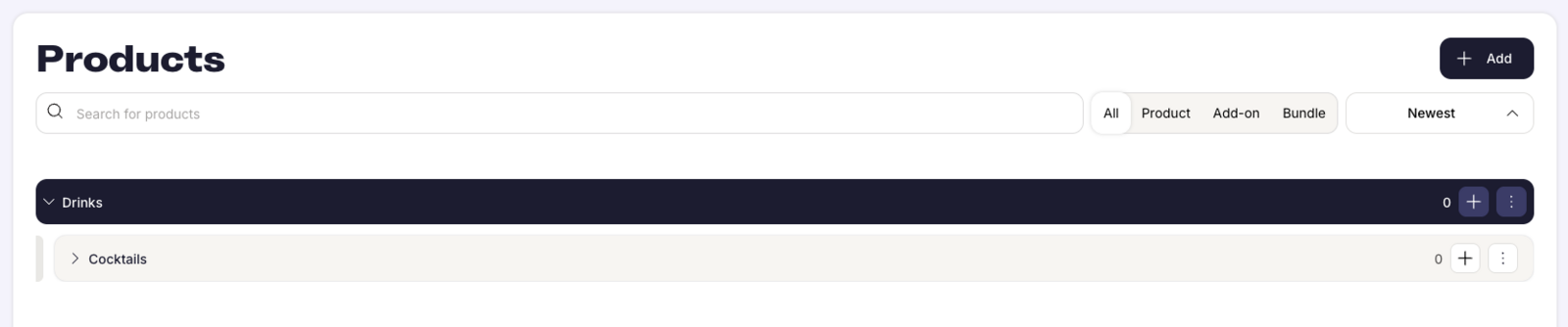
Find and sort items in the Products section
The controls at the top of the Products section apply to categories, products, add-ons and bundles.
- Search: type to find a product, add-on, bundle or category.
- Filters: switch between all, products, add-ons and bundles.
- Sort: sort the product catalogue by name, price or time of creation.
Manage an existing category
The controls on the right side of each category row in the Products section:
- Add: add a new item inside the category.
- More options: category-level actions, such as editing the category.
Each category shows a count of how many items the category contains.
Choose between a category, a product, an add-on and a bundle
- Category: use a category when you need structure. Categories define the structure of the menu.
- Product: use a product when the item is sold individually. Products are added to categories.
- Add-on: use an add-on when the item is optional. Add-ons drive revenue and pass information between the kitchen and front of house.
- Bundle: use a bundle when several products are sold as one combined offer.