.jpg?width=200&height=45&name=Superb_Logo_RGB_Colour_Magic_Black%20(1).jpg)
Create add-ons and bundles in the Products section of Partner to sell optional extras and combined offers in the Superb POS app.
What you need
- Access to the Products section in Partner
- The products that the add-on is attached to, or that the bundle contains, already created
Create an add-on in Partner
Add-ons are optional extras such as extra cheese, extra bacon, a sauce or a larger dish size. An add-on can be free of charge, for example cacao powder on a cappuccino, or priced, for example extra bacon or avocado.
- Go to Products in Partner.
- Click Add → New add-on.
- Enter a name for the add-on. The name is mandatory.
- Enter a price for the add-on.
- Set the VAT rate if the add-on has a price.
- Click Save.
Attach an add-on to a product
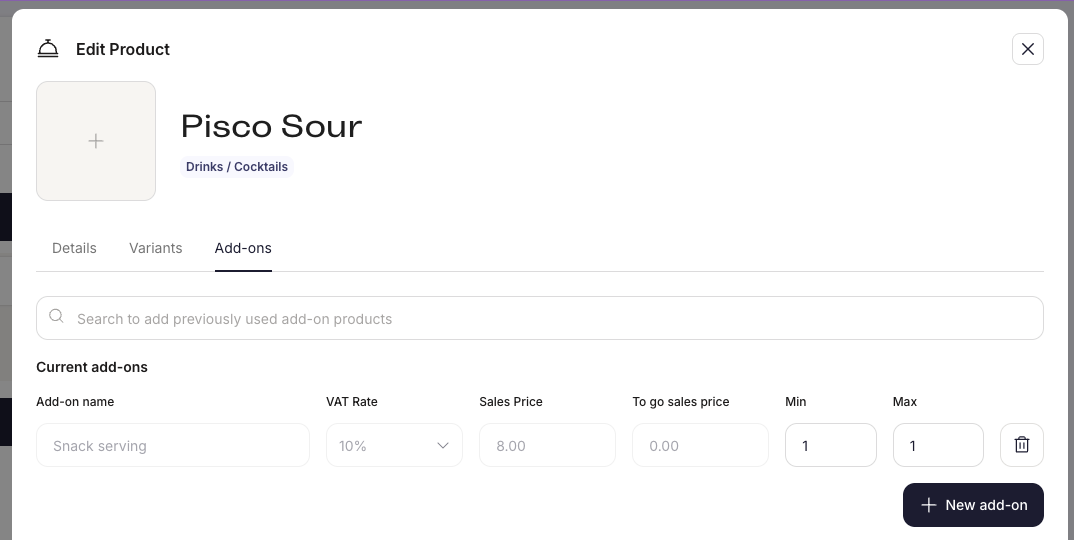
An add-on is offered during ordering only after the add-on is attached to a product.
- Open the product that the add-on belongs to.
- Go to the Add-ons tab.
- Attach the add-on. An add-on that already exists can be selected, and a new add-on can be created from the same tab.
- Click Save.
The add-on now appears during ordering in the Superb POS app.
Create a bundle in Partner
Bundles combine several products into one offer, for example Burger + Fries + Drink, a lunch combo, a family meal or a set tasting menu.
- Go to Products in Partner.
- Click Add → New bundle.
- Enter a name for the bundle on the Details tab.
- Assign the bundle a Category.
- Choose a colour or an image for the bundle.
- Set the bundle Sales price.
- Set the VAT rate.
- Open the Bundle tab.
- Search for a product to include in the bundle.
- Add the product to the bundle. Repeat for every product in the bundle.
- Click Save.
How a bundle price works
The price of a bundle is defined at bundle level. A bundle price disregards the individual prices of the products inside the bundle.
How a bundle prints in the kitchen
When a bundle is selected in the Superb POS app, front of house staff select one bundle and the kitchen receives every product included in the bundle on the printed bill.