.jpg?width=200&height=45&name=Superb_Logo_RGB_Colour_Magic_Black%20(1).jpg)
Set up fiscal categories in the Superb POS app so that corrispettivi (reported sales) are reported correctly to the Agenzia delle Entrate (Italian Revenue Agency).
What you need
- The iPad running the Superb POS app
- The Epson fiscal printer details completed in the app
Open the fiscal mapping in the Superb POS app
Fiscal categories are configured in the fiscal mapping of the fiscal printer settings.
- Open the Superb POS app on the iPad.
- Tap the Backoffice button in the top left corner.
- Tap Settings.
- Tap Fiscal printers.
- Check that the fiscal printer details are filled in.
- Tap Actions.
- Choose Mapping.
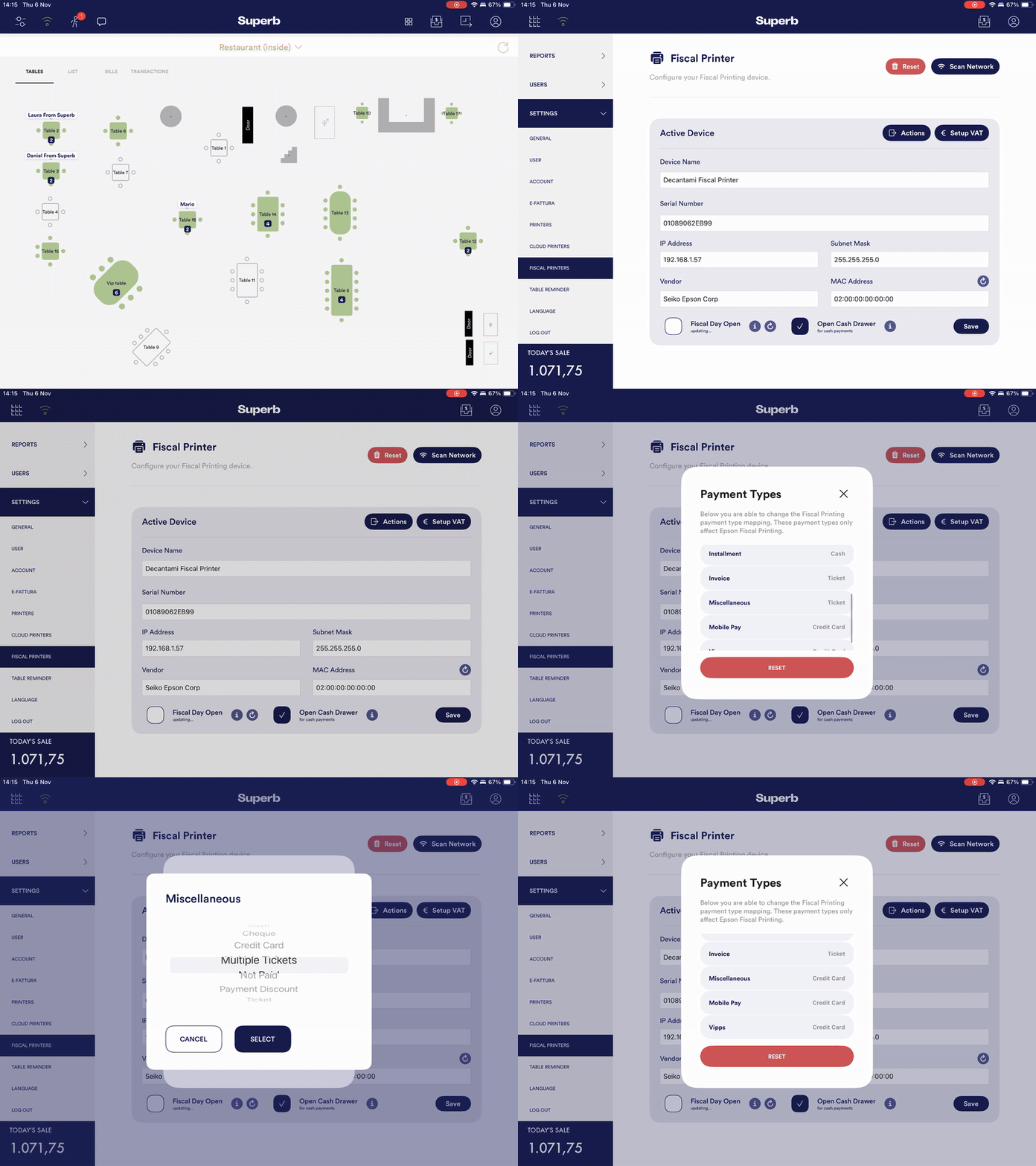
Set the fiscal categories required for Italian fiscal reporting
Two categories in the fiscal mapping must be changed from their default value for Italian fiscal reporting.
- Invoice: choose Credit card instead of the default Ticket.
- Miscellaneous: choose Credit card instead of the default Ticket.