.jpg?width=200&height=45&name=Superb_Logo_RGB_Colour_Magic_Black%20(1).jpg)
Do a direct sale in the Superb POS app to take an order and a payment without selecting a table.
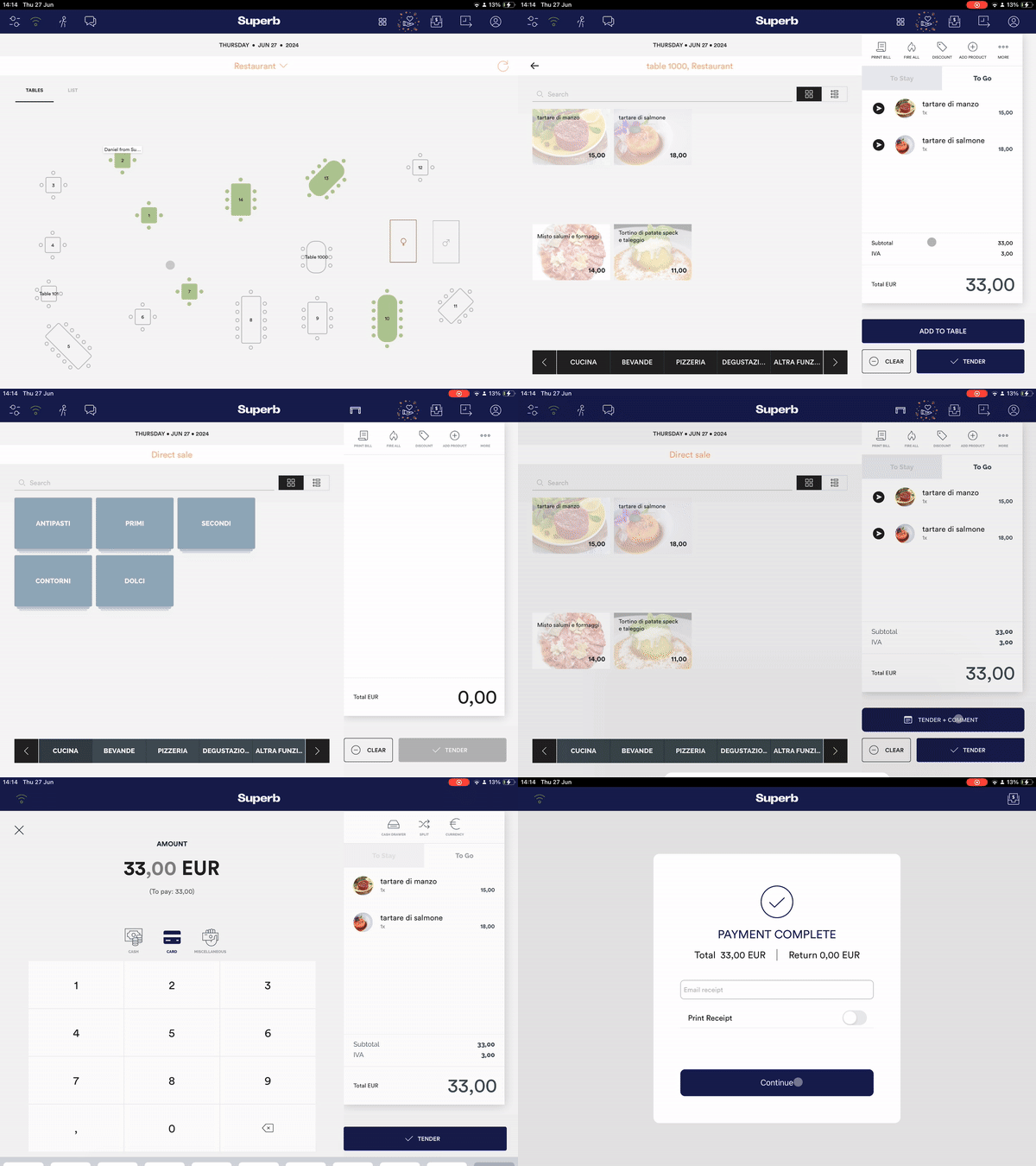
Take a direct sale over the counter
- Tap the 4-box icon in the top dark blue bar of the Superb POS app. On iPad, swiping left with two fingers opens direct sales as well.
- Wait for the empty bill screen to open.
- Add the items to the bill.
- Tap Fire on the items that have to be prepared immediately.
When to use direct sales
Direct sales is for orders and payments that are not tied to a table, for example counter, bar or takeaway sales.
- A direct sale opens an empty bill without a table selection.
- Fired items print when the payment has been made.