.jpg?width=200&height=45&name=Superb_Logo_RGB_Colour_Magic_Black%20(1).jpg)
Create a product in the Products section of Partner to sell the product in the Superb POS app.
What you need
- Access to the Products section in Partner
- At least one category created in Partner
Create a product in Partner
Products are the items you sell, for example burgers, coffee, pasta or beer.
- Go to Products in Partner.
- Click Add → New product.
- Enter a Name for the product.
- Assign the product a Category. Any main category or subcategory can be selected.
- Choose a colour or an image for the product, or leave both blank.
- Enter a Description (optional). The description is shown in the product selection in the Superb POS app when a staff member holds a product instead of tapping it, and suits allergens, pairings and other information staff need.
- Set the VAT rate so that the product is reported correctly.
- Set the Sales price.
- Click Save.
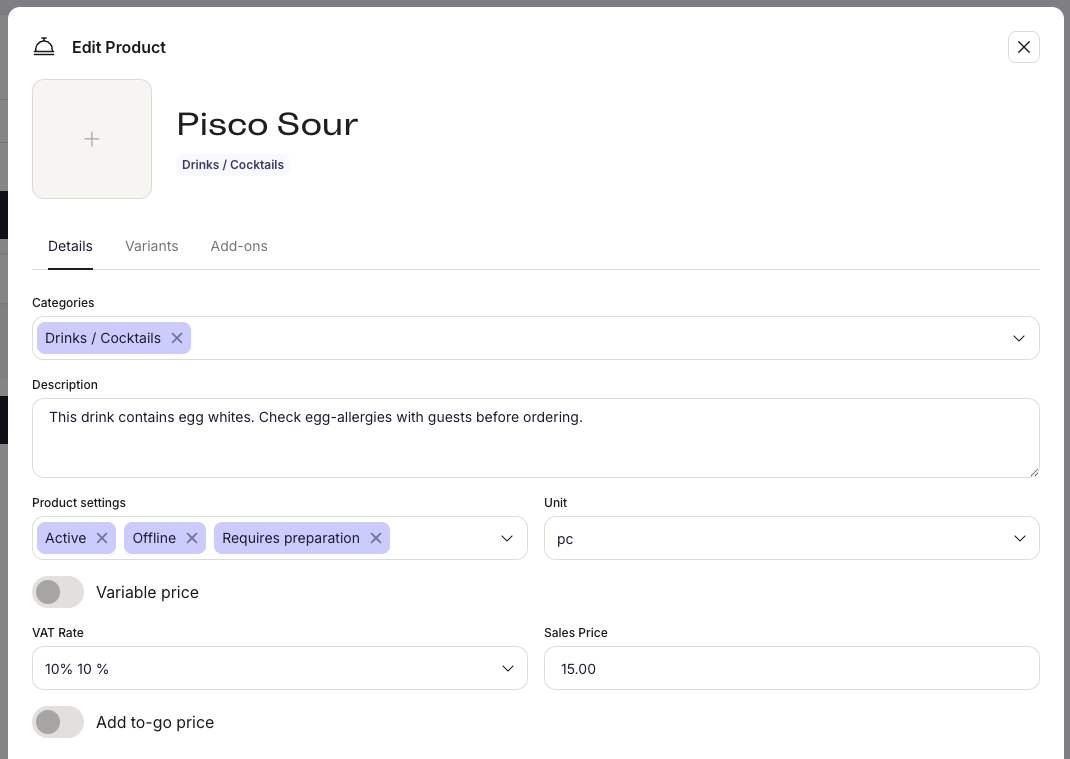
Product settings
Product settings control where and how a product can be sold.
- Active: makes the product available for sale. Set the product inactive when the product is temporarily unavailable.
- Offline: hides the product temporarily without deleting the product.
- Requires preparation: sends the product to print in the kitchen or prep workflow.
- Print product receipt: prints a separate receipt for the product when the product is sold.
- Hide from web: hides the product from online ordering.
- Exclude from ordering suggestion: prevents the product from appearing in upsell or suggestion logic.
- Block in self-checkout: prevents the product from being ordered at a self-service kiosk.
Set the unit of a product
The Unit defines how the product is sold and how the product is calculated in the Superb POS app and in reporting. Most restaurants use pc.
- pc: piece, for example one burger or one coffee.
- g / kg: weight, for example meat by weight or deli items.
- ml / l: volume, for example wine, juice or draft beer.
- cm / m / m2 / m3: length or area. Rarely used in restaurants and more relevant for retail or service businesses.
- tonne: industrial weight.
Set a variable price on a product
Enable Variable price when the price of the product is entered manually at the time of sale.
A variable price suits a product such as "Dish of the day", where the price changes but the sales of the product are still reported as one product at the end of the month.
Set a to-go price on a product
Set a To-go price when takeaway pricing differs from the sales price. Each sales price has its own VAT rate, so set the VAT rate for the to-go price as well.
Add variants to a product
Use variants when the same product is sold in several options, for example sizes small, medium and large, or coffee with normal milk, almond milk or soy milk.
- Variants keep the menu short by grouping the options under one product.
- Each variant can have its own sales price.
Edit, duplicate or delete a product
Click the three dots on a product in the Products section.
- Edit: change the name, price and other settings of the product.
- Duplicate: copy the product. Duplicating is the fastest way to create a variation of the same product.
- Delete: remove the product.
Duplicate, edit and save is the fastest route to a product that is similar to an existing product.